Desktop Agents: Controlled Access to Your Local Files, Apps, and Commands

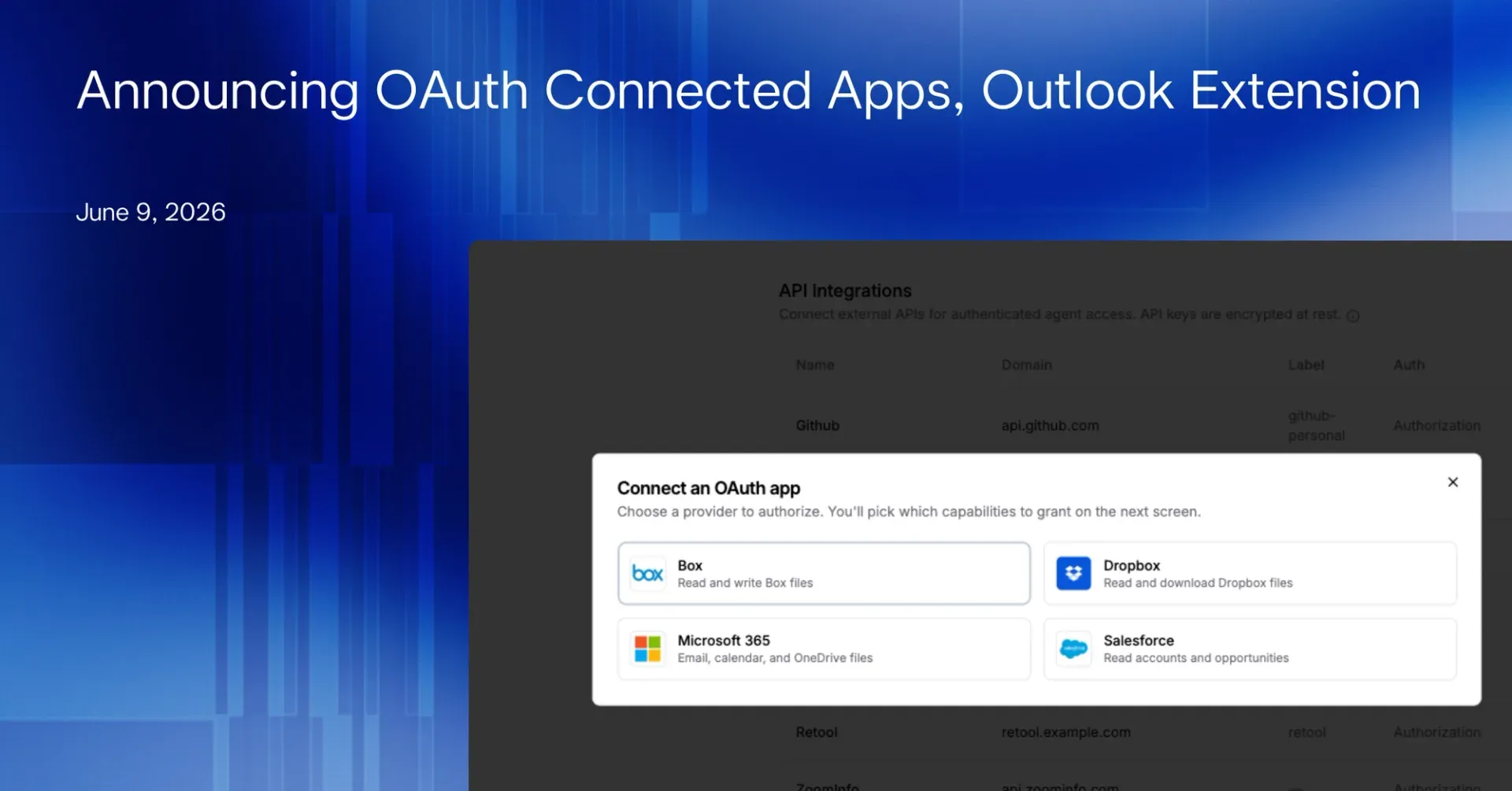
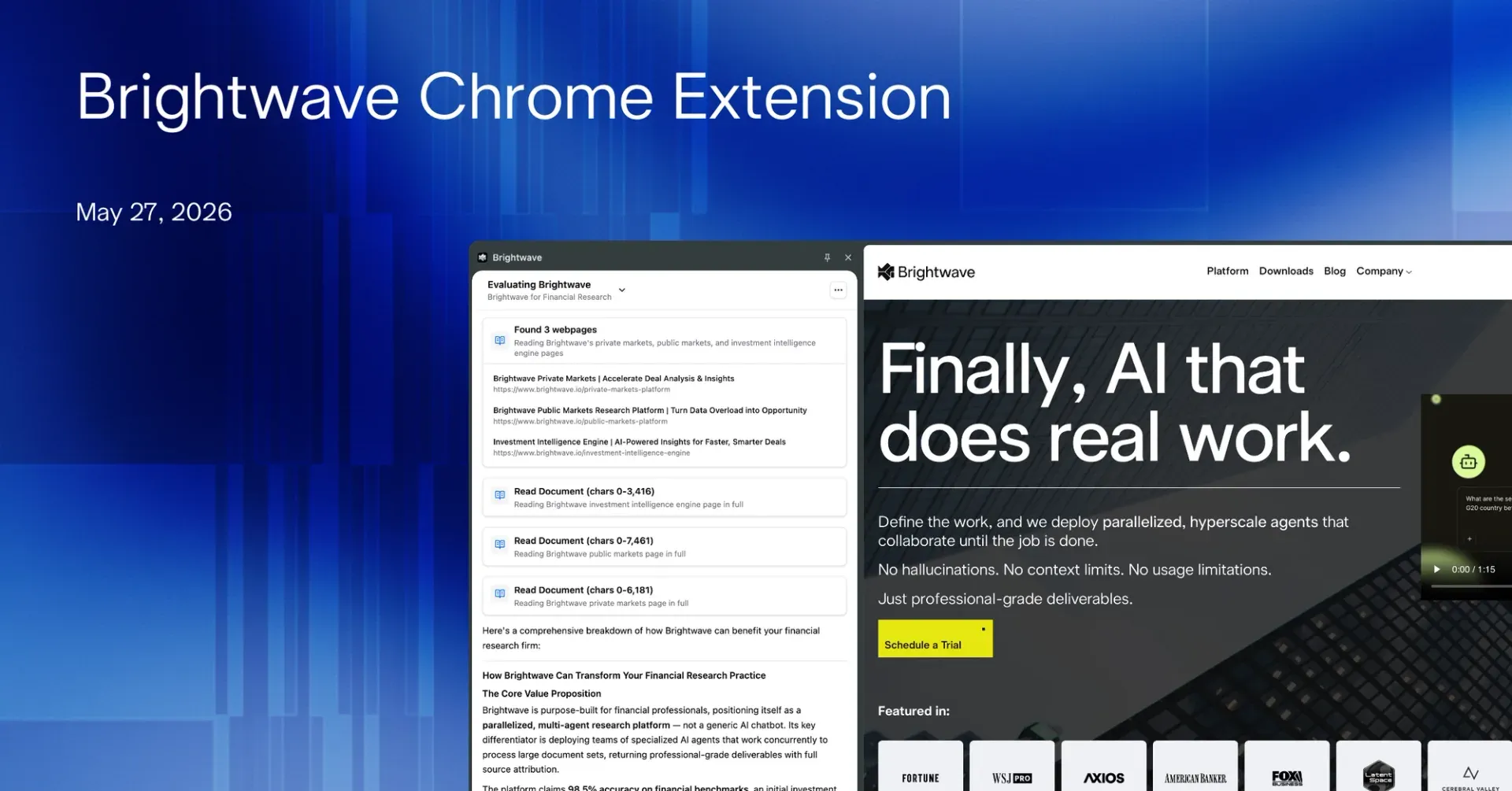
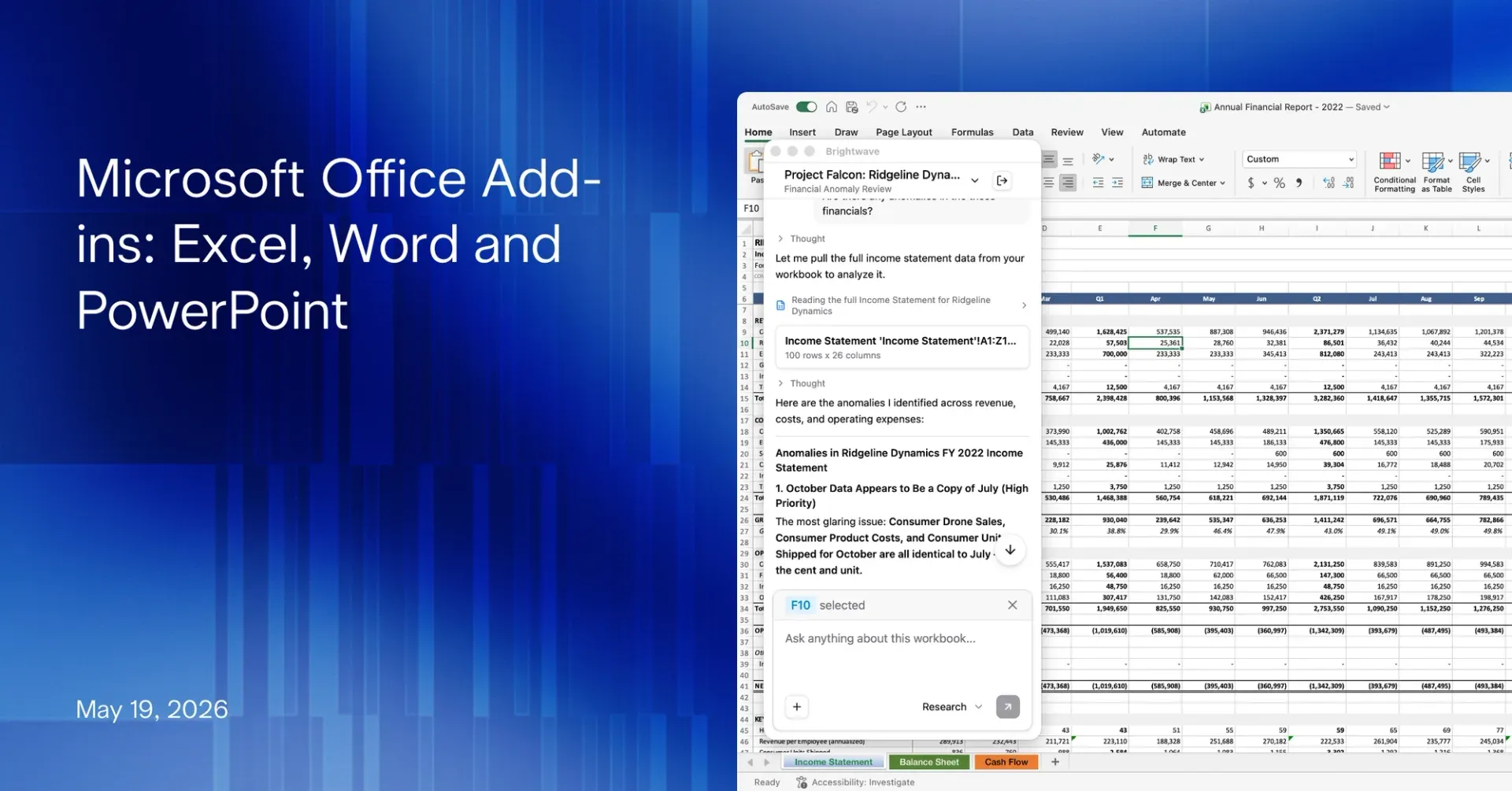
Most serious work does not happen in a browser tab. It happens in a spreadsheet sitting on someone’s hard drive, a deck open in PowerPoint, a folder of PDFs pulled off a shared drive, a record in some internal tool, an inbox thread nobody has had time to file. Until now, getting any of that in front of a Brightwave agent meant uploading it first, file by file. That changes today. Brightwave agents can now work with the local context where the work actually lives, inside a permission model you control.
These capabilities are rolling out now and available where enabled for your team. The point is access: an agent can see and work with the files, folders, and applications already in front of you, and it does so only when you allow it. That control is the whole feature.
Local files and folders
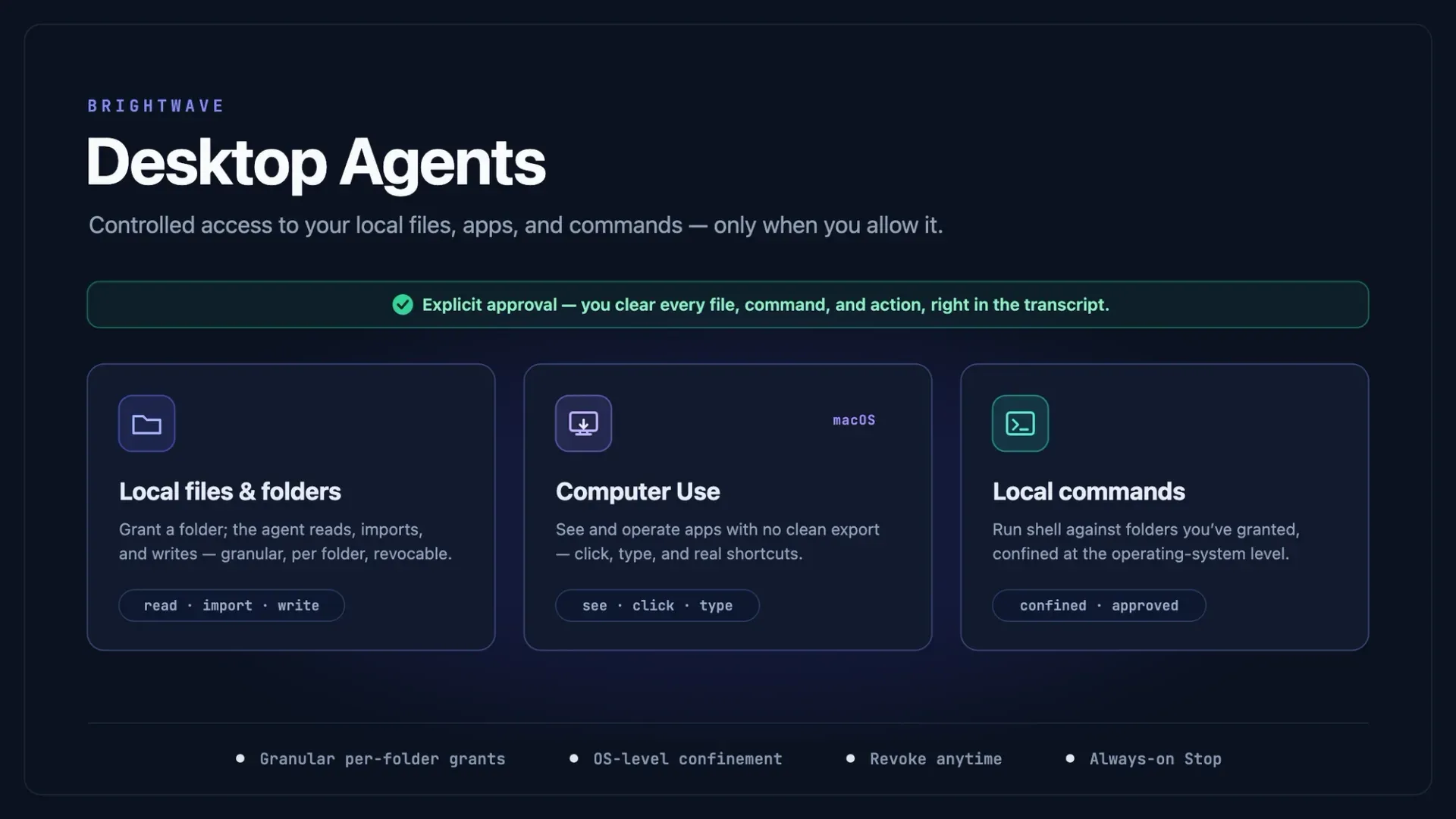
The foundation is local folder access. You grant an agent a specific folder, and from that point it can read the files inside, import what it needs into its research, and write outputs back to a place you choose.
Access is deliberately granular. Each folder carries its own access type, and the three capabilities are independent: read, import, and write. You can grant a folder read only, let it import, or allow the agent to write results back, and you set that per folder rather than once for everything. Read is the implicit baseline; the higher-risk capabilities are opt in, and a folder pick can never quietly grant shell access. When an agent needs to step up from reading to importing or writing mid-task, it asks at that moment instead of demanding broad access up front.
Everything is visible and reversible. A local folder access section in settings lists every folder you have connected, grouped by project, and lets you change an access type or revoke a folder entirely. Grants update live, so a change you make in settings takes effect without restarting anything.
Computer Use on macOS
Some work is not in a file at all. It is on your screen, in an application that has no clean export. On macOS, Computer Use lets a Brightwave agent see and operate those applications directly.
The agent reads what is on screen three ways: the window list tells it what is open, the accessibility tree gives it the text and structure of an app’s interface, and a screenshot captures anything the tree misses. That screenshot is stored as a document and referenced like any other source, so what the agent saw is part of the record.
When you allow it, the agent can also act: click, type, scroll, focus a window, and press keys, including real keyboard shortcuts. Rather than guessing at screen coordinates, it targets specific controls using Set-of-Marks, where candidate elements are labeled and the agent picks the one it means. That makes the difference between clicking the right cell in a spreadsheet and clicking near it.
Computer Use sits behind its own feature flag, separate from local files, so the two capabilities ramp independently. It is available on macOS, where enabled, and you can turn it off entirely from settings even when your team has access.
Local commands, confined
For work that calls for a command line, the agent can run shell against folders you have granted. These commands are confined at the operating system level rather than trusted to behave. On macOS that confinement runs through sandbox-exec. Confinement for Windows and Linux is built and in staging, so this hardens further as those roll out.
Every command runs through the same approval gate as everything else, classified by command type, so routine and consequential operations are treated differently and nothing executes that you did not clear.
Safety and controls
The reason all of this is usable on a real desk is that none of it runs loose. These capabilities are built around explicit approval.
The agent asks before it touches a file, runs a command, or drives an application, and you approve right in the transcript where the request appears. Approval cards are specific: they show the exact file, the exact command, or the exact action, and they let you approve once or grant a standing “always allow” for a tool or an application. Those standing grants are not a black box. A settings surface lists what each agent can do without asking, by project, and lets you revoke any of it with one click. That is separate from the folder capabilities the broker enforces, so you can manage “stop asking me about this tool” and “can this folder be written to at all” independently.
While Computer Use is actively driving an application, a persistent indicator stays on screen showing what the agent is doing right now, with a Stop button that hands control straight back to you. Consequential actions get a forced confirmation regardless of your other settings, and the agent automatically yields if a system security dialog comes to the front.
Two permission modes set the overall posture. Ask is the default and keeps you in the loop on every action. Auto is an opt-in mode that can clear routine, already-vetted steps on its own. Auto is fail-closed and dark by default: it only does anything when your team has enabled it, you have opted a project in, and a deterministic check has already cleared the specific action. Anything outside that still comes back to you.
Want the engineering detail behind all of this — the host broker, the capability model, the OS-level confinement, and how a hijacked model still can’t grant itself anything? Our team wrote up the full architecture: Giving a Cloud Agent Hands on Your Machine.
What this changes for complex work
Think about the first hour on a new project. The materials land as a folder: a spreadsheet, a stack of PDFs, a brief, maybe a reference deck. Today that means uploading each piece before an agent can help.
With these capabilities, you hand over the folder. The agent reads the spreadsheet and the documents in place, pulls in the related context from the tools you already use, and assembles a first pass without anything leaving your machine or passing through a manual staging step. When something only exists inside an app, the agent can look at it directly on macOS. And at every step you can see what it is doing and stop it. The work stays where your work already is, under your control.
Get started
These capabilities are rolling out now, available where enabled. Grant a folder and try it on your own files. If your team does deep, document-heavy work and wants a walkthrough, book some time with us at https://www.brightwave.io/demo